In short
- WhatDictate the job (up to 60 seconds) or photograph a rating plate, IMEI sticker, vehicle registration document or business card – Taskly pre-fills the matching fields.
- Wherein the “New work order” form and when editing, top right: “Dictate” and “Photo”.
- ControlEvery value first appears in the “Apply?” preview. Only what you tick is entered.
- TechnologyCloudflare Workers AI. Audio and photos are not stored and not used for training.
- Can be switched offfor the whole business, by the owner or office staff.
- PriceTaskly subscription for €19 a month or €190 a year (2 months free), each incl. VAT – try it free for 30 days, no credit card, cancel monthly, with annual payment at the end of the 12 months.
Dictating a job: how it works
- Open the form. “New work order”, choose a template, tap “Dictate” at the top right. On a PC you can also use Alt+D. The first time, the browser asks whether Taskly may use the microphone.
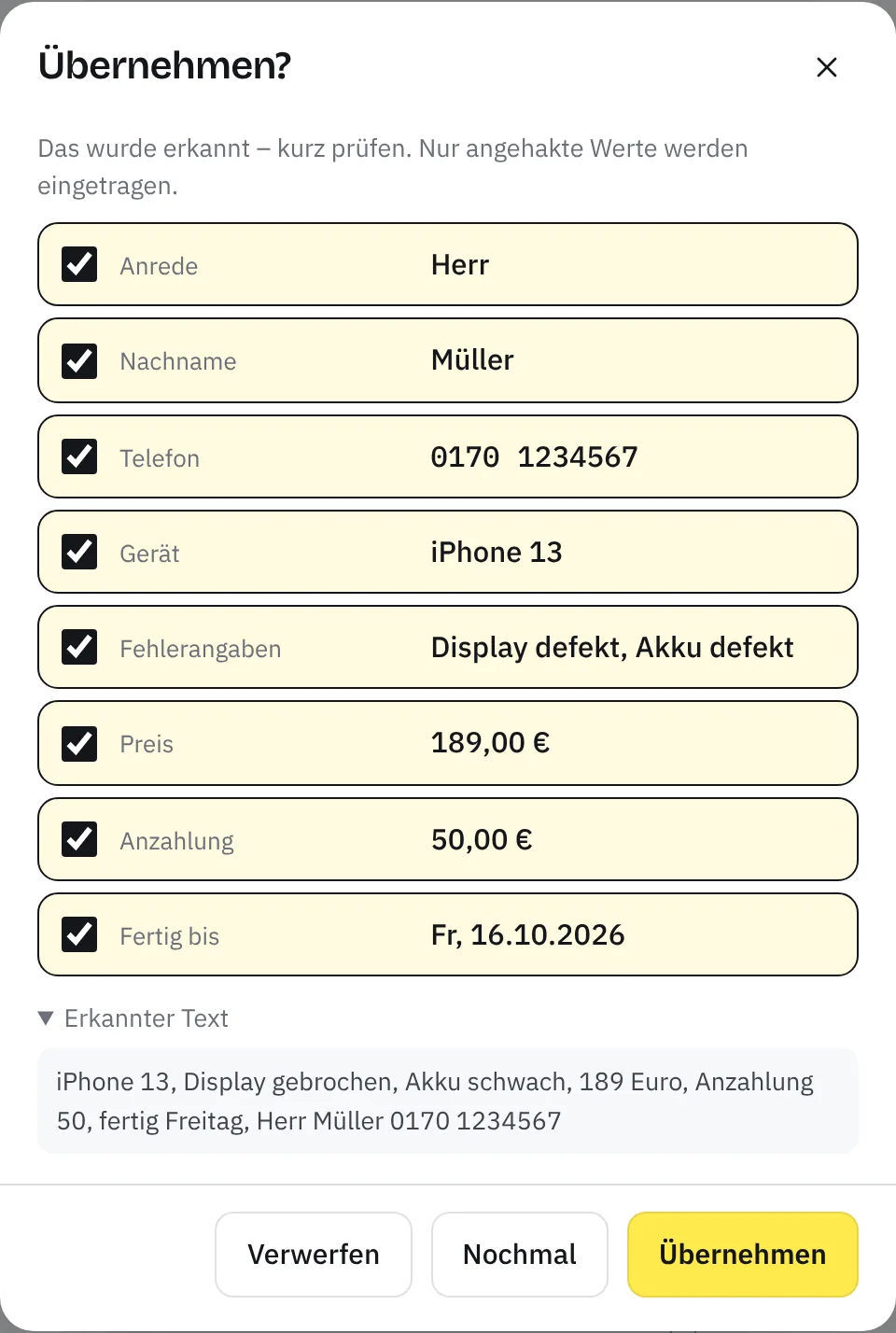
- Just start talking. For example: “iPhone 13, screen cracked, battery weak, 189 euros, deposit 50, ready Friday, Mr Müller 0170 1234567”. The recording usually ends by itself when you pause briefly – after 60 seconds at the latest. Or tap “Ready”.
- Check. In the “Apply?” preview, each recognised value is listed separately with a tick box. You can expand the recognised text and read it through.
- Apply. One tap and the ticked values are in the form. If something isn't right, record again with “Again” or discard the result. Then carry on as usual: add details, get it signed, save.
From the example above, Taskly makes these entries in the “Phone & tablet” template:
| Said | Field | Entered |
|---|---|---|
| “iPhone 13” | Device | iPhone 13 |
| “screen cracked, battery weak” | Fault details | Screen faulty, battery faulty |
| “189 euros” | Price | €189.00 |
| “deposit 50” | Deposit | €50.00 |
| “ready Friday” | Ready by | Date of the coming Friday |
| “Mr Müller” | Title, last name | Mr, Müller |
| „0170 1234567“ | Phone | 0170 1234567 |
What dictation understands
- Faults and work by meaning: “screen broken” or “display cracked” becomes “Screen faulty”. Only options that exist in your template are ticked.
- Amounts: “189 euros”, “79.90” or “45 euros 90”. Whatever follows “deposit” or “paid in advance” goes into the deposit, otherwise into the price.
- Dates: “ready Friday”, “tomorrow”, “the day after tomorrow”, “in three days”, “next week Tuesday” or “by 15/10” become a date.
- Names: “Mrs Anna Schmidt” becomes title, first name and last name. You can spell difficult names (“K for Konrad, O for Otto …”) and Taskly puts them together.
- Phone and email: you can say numbers in groups (“0170 – 123 – 4567”), and email addresses as something like “max dot müller at gmail dot com”.
- Numbers in words: “one hundred and eighty-nine” becomes 189.
- Append text: the small microphone on text fields such as “Repair carried out” only appends what you say as text – handy when the job is done.
Photo instead of typing
Instead of typing long numbers, you photograph them. With the “Photo” button you choose the tablet's or phone's camera, upload an existing picture or use “Photo with phone” via QR code – handy at a PC without a camera. Then the “Apply?” preview appears again – this time with the photo for comparison.
| Photo of | Taskly reads, for example |
|---|---|
| A phone's IMEI sticker or rating plate | Model, IMEI and serial number |
| Rating plate of a laptop or electrical appliance | Make and model, serial number |
| Vehicle registration document | Number plate and VIN, depending on the photo also make and model |
| Business card | First name, last name, company, phone, email |
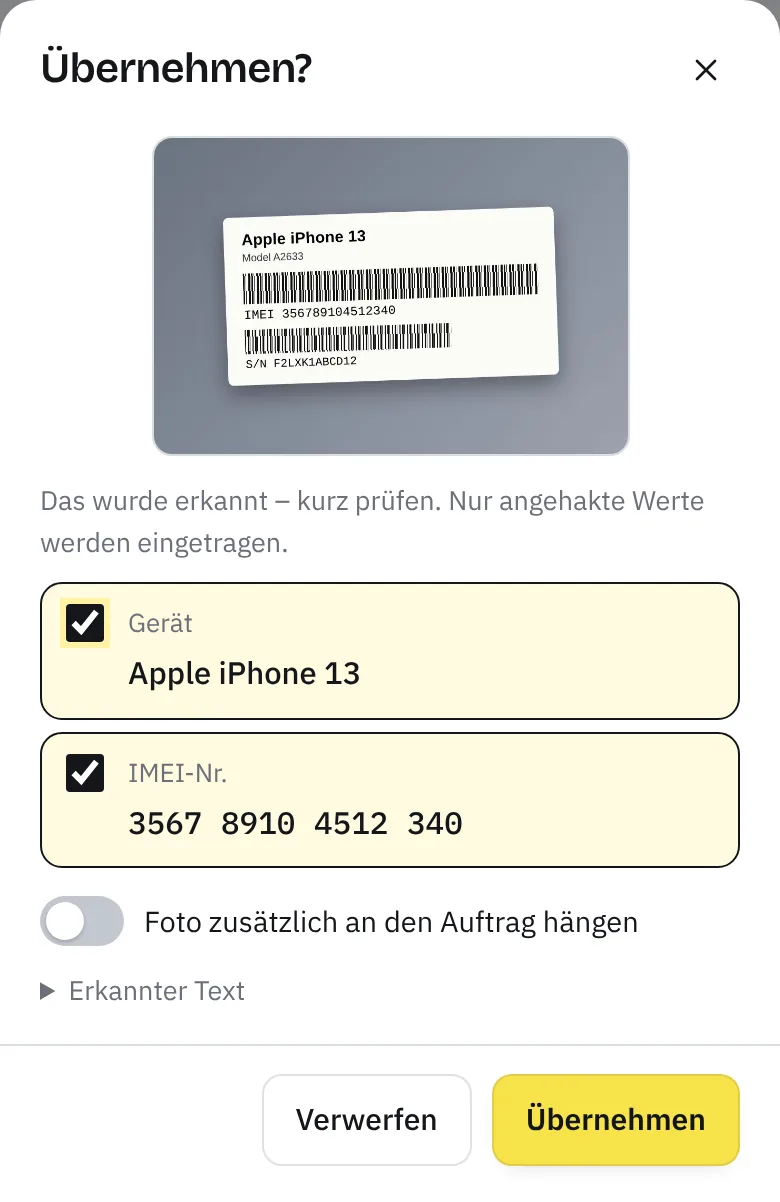
Only what fits a field in your template is entered. If you also want to keep the photo as a record, switch on “Also attach photo to the job” in the preview – provided your template has a photo field. If you still partly work on paper, you'll find a free printable template under repair order template.
You check before anything is entered
The AI helper suggests values; you decide. The preview and a few fixed checks make sure of that:
- Empty fields are preselected in the preview. Fields that already contain something are shown by Taskly with the old value (“instead of …”) and only overwritten if you tick them.
- Tick-box fields such as the fault details are added to, not replaced.
- Only valid values: options that don't exist in the template are dropped, as are invalid email addresses and calendar dates that don't exist (such as 31 February). Taskly puts amounts and dates into the right format.
- Cross-check with the text: suggestions that don't match the recognised text are dropped – for example a title when neither “Mr” nor “Mrs” was said. A ready date in the past is treated as a mishearing and discarded.
- Saving only happens when you save the work order – just as when typing.
Data protection: what happens to the recording and photo
- The recording and photo only go to Cloudflare Workers AI for recognition. Cloudflare is Taskly's hosting provider anyway and is bound as a processor; the data processing agreement under Art. 28 GDPR is part of signing up.
- Audio and photos are stored neither at Taskly nor at Cloudflare and are not used to train AI models. Only the recognised text and values come back.
- If you deliberately attach a photo to the job, it's kept there like any other photo. A photo you take with your phone via QR code is briefly uploaded for the transfer and deleted again if you don't attach it.
- If you dictate a customer's name and phone number, that's personal data. It's processed for recognition in the same way and only ends up in the job if you apply and save it.
- Recognition runs on Cloudflare's network. As with delivery via Cloudflare in general, processing outside the EU can't be completely ruled out. Details are in the privacy policy.
- If you don't want AI in your business, switch the helper off under Settings → “Business & letterhead” → “AI helper in the form”. Then nothing more is sent to Workers AI.
For contracts too: contracts from screenshot
The same helper reads lists too. Phone shops that sell mobile contracts upload a screenshot of the order list from their dealer portal under “Contracts”. Taskly reads the customer, phone number, tariff and date, you check the rows in a table and then create the contracts. The image is only used for reading and is not stored. More on the software for phone repair page.
Which businesses it's worthwhile for
The AI helper works with every template, because it knows the fields of the template you're filling in. It helps most where a lot gets copied out at the counter:
- Phone shops and smartphone repair: IMEI and model from the sticker instead of typing 15 digits – see phone repair.
- Car workshops: number plate and VIN from the registration document, the customer's request by dictation – see car workshop.
- Computer and electronics repair: make, model and serial number from the rating plate, the faults by dictation – see PC and laptop repair.
- Bike workshops: bike, work and ready date dictated in one sentence – handy when lots of bikes come in at once in peak season – see bike workshop.
- Trades and on-site service: take business customers from their business card, enter details of the visit by dictation.
You'll find all 16 industry templates under industries.
Limits of the AI helper
- It can make mistakes. Mishearings and misreadings happen, which is why there's the preview. Always double-check long numbers.
- It doesn't fill in everything. The signature, photos, the item list (parts, materials, labour units) and the note stay with you.
- 60 seconds at most per recording. For more, speak in two goes.
- Internet and an up-to-date browser are required, plus a microphone for dictation. Without a connection or if Workers AI isn't available at the moment, Taskly tells you, and you type as usual.
- Photos: sharp, close and printed. The helper isn't meant for handwritten notes.
- Limit per business: currently 120 recognitions per hour and 600 per day.
- Not a chatbot: the helper doesn't answer questions, make diagnoses or write estimates. It only transfers what was said or what's on the photo.
What Taskly is not
Taskly – the digital work order replaces the paper work order and everything that goes with it: job, signature, message to the customer, customer records, contracts and simple invoices. Taskly isn't a till system, stock management with inventory or a car dealer management system with a parts catalogue. The AI helper is an input aid for the form – not a standalone AI product.
What it costs
The AI helper is part of the Taskly subscription for €19 a month incl. VAT. New businesses try it free for 30 days with no credit card; the trial ends automatically and nothing is charged. All details on pricing and limits
AI helper FAQ
Is my voice recording or the photo stored?
No. The recording and photo only go to Cloudflare Workers AI for recognition, are stored neither at Taskly nor at Cloudflare and are not used to train AI models. Only the recognised text and the values for the fields come back. A photo is only kept if you explicitly attach it to the job in the preview.
Do I have to check the recognised details?
Yes. The AI can mishear or misread – especially with long numbers such as IMEI, VIN or phone. That's why Taskly first shows every recognised value in the “Apply?” preview. Only what's ticked is entered, and it's only saved when you save the work order.
What can Taskly read from a photo?
“Photo instead of typing” is meant for printed details: rating plate, IMEI sticker, vehicle registration document and business card. From these, Taskly takes, for example, the model, IMEI and serial number, number plate and VIN, or name, company, phone and email – depending on which fields your template has. It isn't meant for handwritten notes.
Can I dictate in another language?
Yes. You dictate in the language the app is set to: German, English, Turkish, Arabic, Russian, Ukrainian, French or Spanish. German is the most accurate, because there Taskly also evaluates terms from your template, numbers in words, dates and spelled-out names.
How do I switch the AI helper off?
Under Settings → “Business & letterhead” → “AI helper in the form”. Owners and office staff can do this, and the switch applies to the whole business. The “Dictate” and “Photo” buttons then disappear from the form, and “Contracts from screenshot” is off too. The helper is switched on by default.
Which AI is behind it?
Cloudflare Workers AI with open models that Cloudflare runs itself: Whisper for speech recognition, Llama 3.3 for assigning the details, and Llama 4 Scout and Mistral Small 3.1 for reading photos (as of October 2026). Recordings and photos don't go to the makers of these models.
Does it work on a PC without a camera?
Yes. On a PC you upload an existing photo or choose “Photo with phone”: you scan a QR code and take the picture with your phone, and the result appears on the PC. For dictation you need a microphone, for example in your laptop or headset; the keyboard shortcut Alt+D starts recording.
What does the AI helper cost?
The AI helper is part of the Taskly subscription: €19 a month incl. VAT, try it free for 30 days – nothing is charged before the trial ends. There's currently a limit of 120 recognitions per hour and 600 per day per business. More under pricing.
Last updated: 15/10/2026 · Taskly, E-Studio, Iserlohn