In short
- Whenwhen the job is saved (work order as a link) and at the status “Ready” (message “ready for pick-up”). Manually at any time: “Send to customer again”.
- Howby email with your business name as the sender. SMS is available on request for enabled businesses.
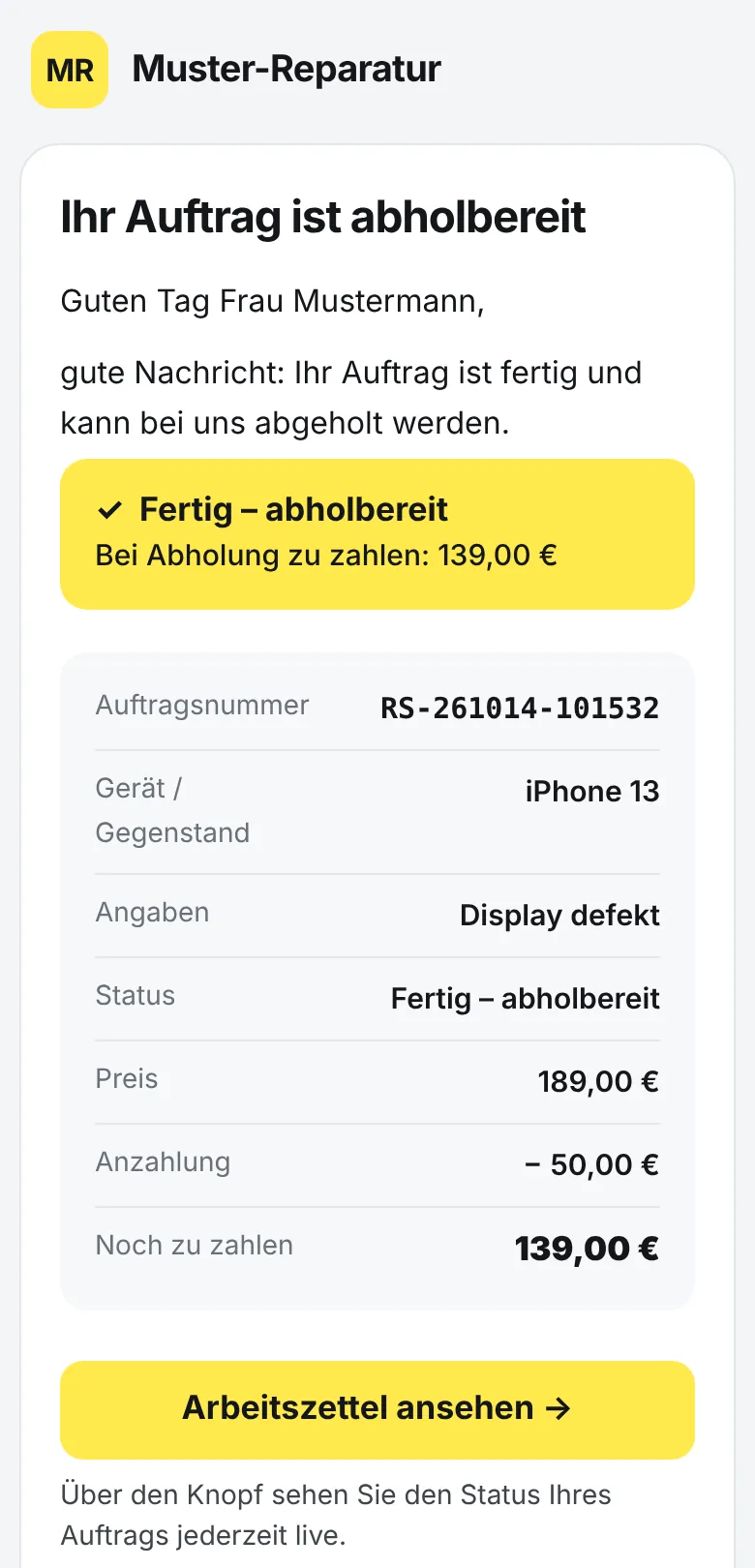
- ContentJob number, device or item, the amount still due on collection, and a link to the status page.
- Status pageThe customer sees the status of their job live in the browser – no app, no account.
- ConsentOn their own phone the customer chooses email and SMS themselves. You record a withdrawal in the job.
- On by defaultin the templates for repairs and workshops; off in the templates for on-site trades.
- PriceTaskly subscription for €19 a month incl. VAT – try it free for 30 days, no credit card. SMS on request.
How it works – from taking in the job to collection
- Take in the job. Enter the customer's phone number and email address. When saving, “Inform customer by SMS/email” is ticked: the customer gets their work order as a link – to view, save and print. If nothing should go out for a job, untick the box.
- Signature on the customer's phone? Then Taskly holds back the work order until the customer has signed and sends it only via the channels they agreed to.
- Do the work. Set the job to “Being repaired” (in some templates the step is called “In progress”). No message goes out for this, but the customer's status page shows the new status. Waiting for a spare part? Put it on the order list linked to the job: the status page then shows whether it's on order or has arrived. For everything else there's the “Note for the customer” field, e.g. “Spare part arrives Thursday”.
- Mark as done. One tap on “Ready” in the job view and Taskly sends the “ready for pick-up” message – with the amount still due on collection (price minus deposit). Taskly then shows what went out, for example “Email sent”.
- Send it again. Has the customer deleted the message or given a new address? “Send to customer again” sends it once more: as “ready for pick-up” for finished jobs, otherwise as the work order.
- Remind if nobody comes (optional). Switch on the collection reminder under Settings → Automations. It reminds the customer up to three times – by default after 7, 14 and 28 days – and stops as soon as the job has been collected or cancelled. You can add a note to the last reminder, for example about storage fees; word it the way your terms of business provide.
- Collection. Status “Collected” – the status page thanks the customer and the job is closed.
What the customer receives
| Work order | when saving: email “Your work order [number]” with the job details and the button “View work order”; by SMS a short text with a link |
|---|---|
| Ready for collection | at “Ready”: email “Your order [number] is ready for pick-up” with the amount due on collection, your contact details and the link to the status page; by SMS the same in short form |
| Collection reminder | only if switched on: “Your job [number] is waiting for you”, three times at most |
| Sender | your business name; replies to the email go to your business address |
| Language | one of eight – the one the app was set to when the job was created |
This is what the “ready for pick-up” SMS looks like (sample data, link shortened):
Sample Repairs Sampletown: Your job RS-261014-101532 (iPhone 13) is ready for collection. Due: 139.00 EUR. Live status: https://trytaskly.com/z/… Questions? Tel. 01234 567890
Taskly writes SMS without umlauts (“ä” becomes “ae”) in the basic SMS character set. That's why customers whose job was created in Arabic, Russian or Ukrainian get the SMS in English; the email arrives in their language.
The status page: the job's progress, live at any time
Every message contains a link to the job's status page. The customer opens it in the browser on their phone or PC, with no app and no account. There they see:
- the status in words, e.g. “Ready for pick-up”, and as a timeline with date and time: Received, In progress, Ready, Collected – plus a step for the spare part if something is on the order list for the job (the customer doesn't see which part);
- the amount still to pay on collection;
- your “Note for the customer” of up to 300 characters. After “Ready” the page only shows notes you wrote afterwards – so an old “Spare part has been ordered” disappears;
- all details of the work order, unlock codes only as ••••, photos not at all;
- buttons to call and to write an email, plus “Save as PDF / print” for the original work order in A4.
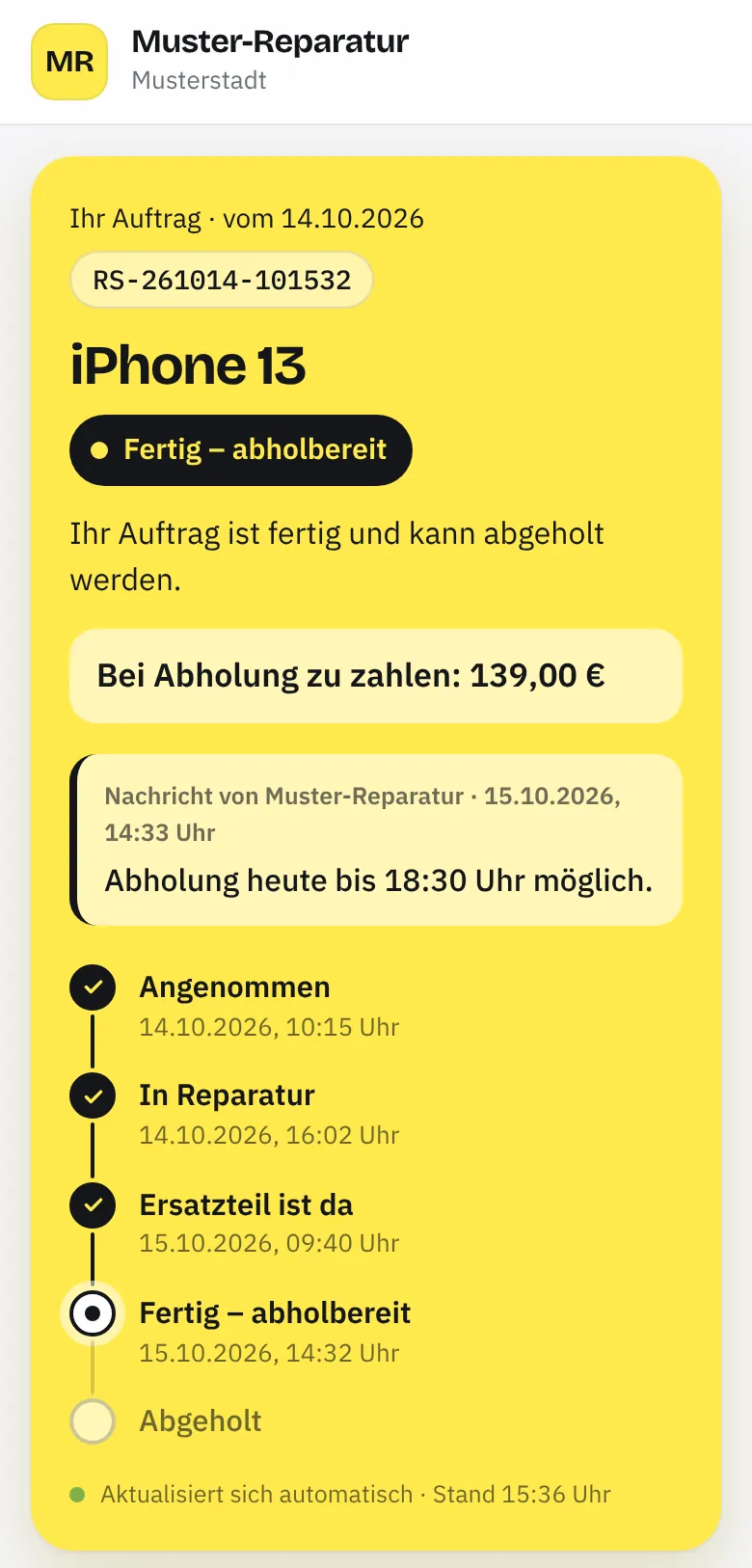
While the page is open, it refreshes itself every minute. The link is valid as long as the job exists; if you cancel or delete it, the page only shows “Work order not found”. Search engines don't index the page. If a customer has no email address, give them the link another way using “Copy customer link” in the job view.
Consent and withdrawal: the customer decides
When the customer signs on their own phone or checks themselves in at the counter via self check-in, Taskly asks them which channels they want to receive messages about their job through. Both ticks are voluntary; they can sign without them. The signing page says:
“I agree that [business] may send me messages about this job by email.”
“I agree that [business] may send me messages about this job by SMS to [mobile number].”
“For example your work order or the message that your job is ready. You can withdraw your consent at any time.”
- The choice applies. Once the customer has decided, Taskly sends messages about this job only via the ticked channels – including when sending again and with the collection reminder.
- Only to this address. The consent applies to the email address or mobile number given at the time. If you change it later in the job, nothing more goes out via that channel.
- Proof. For each channel Taskly stores yes or no, date and time, address or number, language and the version of the text shown. The job view shows, for example: “Consent: Email: Yes · SMS: No · given on 15/10/2026 on the customer's phone”.
- Only the customer ticks the boxes. Your team can't add consent afterwards.
- Withdrawal. If the customer no longer wants to receive anything via a channel, tap “Record withdrawal · SMS” or “· Email” in the job view and confirm. From then on nothing more goes out via that channel for this job. The date is shown on the job, and who recorded the withdrawal is in the history. Only the customer can give consent again.
- Without a decision. On the tablet, Taskly doesn't ask about message channels. If there's no choice from the customer's phone – for example because the customer signed on the tablet – sending follows the template and your settings.
Messages such as the work order or “ready for pick-up” only concern the job and are not advertising; businesses usually send them to complete the job. Whether you need consent for this in a particular case and how you handle a withdrawal is for you to check for your business – Taskly provides the request and the proof (terms & conditions, § 9(4)). Advertising such as offers or newsletters isn't covered by the request. These notes are general and not legal advice.
SMS: on request for enabled businesses
Every business can use messages by email straight away. SMS isn't enabled for every account at the moment: we enable it on request – write to info@trytaskly.com and we'll discuss the terms with you directly. If SMS isn't enabled for your business, Taskly skips the SMS and still sends the email.
For enabled businesses:
- Sender: up to 11 letters, digits and spaces, set under Settings → Business & letterhead (“SMS sender”); if empty, your business name shortened to 11 characters.
- Replies: customers usually can't reply to a name as the sender. That's why your phone number from Business & letterhead appears at the end of the SMS, if you've entered one.
- Consent: the SMS only goes to the number the customer agreed to – if they made a choice on their phone.
Settings: what goes out when?
| Template | Templates → Customise → “Notify customers”: “On saving: work order by SMS/email” and “On ‘Done’: ‘ready for collection’ message”. |
|---|---|
| Business | Settings → Notifications: “Send SMS to customers” and “Send email to customers” – applies to all templates. |
| Job | the tick box “Inform customer by SMS/email” when saving. |
| Customer | their choice on their own phone. It limits everything else: channels without a tick stay closed for this job. |
Both messages are switched on by default in the templates Phones & tablets, Computers & IT, Electronics & home appliances, Car garage, Bikes & e-bikes, Watches & jewellery, Tailoring & alterations, Shoe repair & key cutting, as well as in the General work order. In the templates for on-site trades – electrical installation, plumbing/heating/air-con, painters, joinery, gardening & caretaking, cleaning – and in the mobile contract record they're off, because nothing is usually collected there. You can switch them on at any time.
Privacy
- Taskly sends emails and SMS on behalf of your business. The data processing agreement under Art. 28 GDPR is part of signing up; the database and files are stored in the EU.
- For every message sent, Taskly stores a log with a shortened recipient address, purpose and result – without the message content – and deletes it after 90 days.
- The status page shows no photos and no codes in plain text.
- Details: privacy policy, section 7 and section 8, terms of use, section 7.
What notifications in Taskly are not
- No newsletter or bulk SMS tool. Every message belongs to a job; Taskly can't send circulars to all customers.
- No chat and no WhatsApp integration. Replies to emails land in your inbox, not in Taskly. But you can copy the customer link and pass it on yourself.
- No message at every status change. Taskly only informs about the job's progress by itself twice – with the work order and with “ready for pick-up” – plus the collection reminder if you switch it on. The customer sees “Being repaired” on the status page.
- No delivery guarantee and no read receipt. Taskly reports whether a message was sent, not whether it was read.
- SMS not for every account. Every business can notify by email; SMS is available on request for enabled businesses.
And as everywhere: Taskly replaces the paper work order, but it isn't a till system or stock management.
Where it helps
The “ready for pick-up” message fits wherever customers bring something in for repair and collect it again – in a phone shop (software for phone repair), at a car garage, in a bike workshop or at the watchmaker's. How the customer signs on their phone and chooses email and SMS is shown on the digital signature page; how they enter their details at the counter themselves, under self check-in. All features are listed under Features. Prefer paper first? The repair order template is available free as a PDF.
What it costs
Notifying customers by email – automatically too (automations) – is part of the Taskly subscription for €19 a month incl. VAT – try it free for 30 days, no credit card. SMS is available on request for enabled businesses. Pricing and limits in detail
Customer notification FAQ
Is the customer told automatically when the repair is ready?
Yes. As soon as you set the job to “Ready”, Taskly sends the “ready for pick-up” message – provided the template includes it (on by default in the repair and workshop templates) and the job has an email address or, if SMS is enabled for your business, a mobile number. You don't need a separate send button.
Can I inform customers by SMS?
Yes, if SMS is enabled for your business. That isn't the case for every account at the moment – write to info@trytaskly.com if you want to use SMS. Until then the message goes out by email; Taskly skips the SMS.
What does notifying cost?
Emails to your customers are included in the Taskly subscription (€19 a month incl. VAT, try it free for 30 days). For SMS we'll discuss the terms with you directly when you ask. Details are on the Pricing page.
May I notify customers without consent?
Messages that only concern the job – the work order or “ready for pick-up” – are not advertising and are usually sent to complete the job. Whether that's enough in your case is for you to check; this answer is not legal advice. Taskly helps you with the request on the customer's phone: there the customer chooses email and SMS themselves, and Taskly stores their choice as proof.
The customer doesn't want SMS any more – what do I do?
Open the job and tap “Record withdrawal · SMS” next to the consent. After that no more SMS go out for this job, not even when sending again. The withdrawal applies to this job; for a new job the customer chooses again when they sign on their phone. If they made no choice on their phone at all, this button doesn't exist – then remove the mobile number from the job.
Can I see whether the message arrived?
After you tap, Taskly reports whether the email and SMS were sent – e.g. “Email sent” – or why not, for example “Not sent without consent: SMS”. When sending again, the result also appears in the job's history. Taskly can't see whether the customer has read the message.
Can the customer reply to the message?
To the email, yes: the reply goes to your business email address from Settings → Business & letterhead – after signing up, that's your login address. Customers usually can't reply to an SMS that has your business name as the sender. But your phone number appears at the end of the SMS, if you've entered one.
Does the customer get the message in their language?
Yes, in one of eight languages: German, English, Turkish, Arabic, Russian, Ukrainian, French or Spanish. What counts is the language the app was set to when the job was created. If the job was created in Arabic, Russian or Ukrainian, the SMS arrives in English, because Taskly only sends SMS in the basic character set.
Last updated: 15/10/2026 · Taskly, E-Studio, Iserlohn