In short
- Two codesa fixed counter QR to print as an A5 display and a one-time QR straight from the “New work order” form – valid for 30 minutes and single use.
- For the customerA phone camera and a browser are enough – no app, no account, eight languages.
- Required detailsLast name plus phone or email. Title, first name, company, address and “What's it about?” are optional.
- With signature if you wantThe customer reads your terms and signs right away on their phone.
- PrivacyThe details only go to your business. After 24 hours a check-in disappears from the list and is deleted automatically.
- PriceTaskly subscription for €19 a month or €190 a year (2 months free), each incl. VAT – try it free for 30 days, no credit card, cancel monthly, with annual payment at the end of the 12 months.
What self check-in is good for
At the counter, it isn't filling in the form that takes time – it's the dictating: “Is that with ‘ck’ or just ‘k’?”, an email address letter by letter, a phone number with digits swapped. With self check-in the customer types their own details – on the device they know. Many phones offer saved contact details for filling in; the page's fields are labelled accordingly.
Meanwhile you're already looking after the device, the next customer or the ringing phone. That helps most when it's busy or you're alone in the shop. Anyone who prefers to dictate can keep dictating: check-in is an option for your customers, not an obligation.
Option 1: the counter QR on a display
Every business has a fixed counter code. You print it once and it's valid until you generate a new one.
- Get the code. Open “Check-ins” in the app and tap “Counter QR”. Taskly shows your business's code and the link to it.
- Print the display. “Print A5 display” puts your business name, address, the heading “Scan & fill in yourself”, a large QR code and three short steps on an A5 sheet – plus “Fill in yourself” in the seven other customer languages. You stand the sheet on the counter.
- The customer scans and fills in. Open the phone camera, scan the code, fill in the page, submit. They then see “Thanks – received!” and can put their phone away.
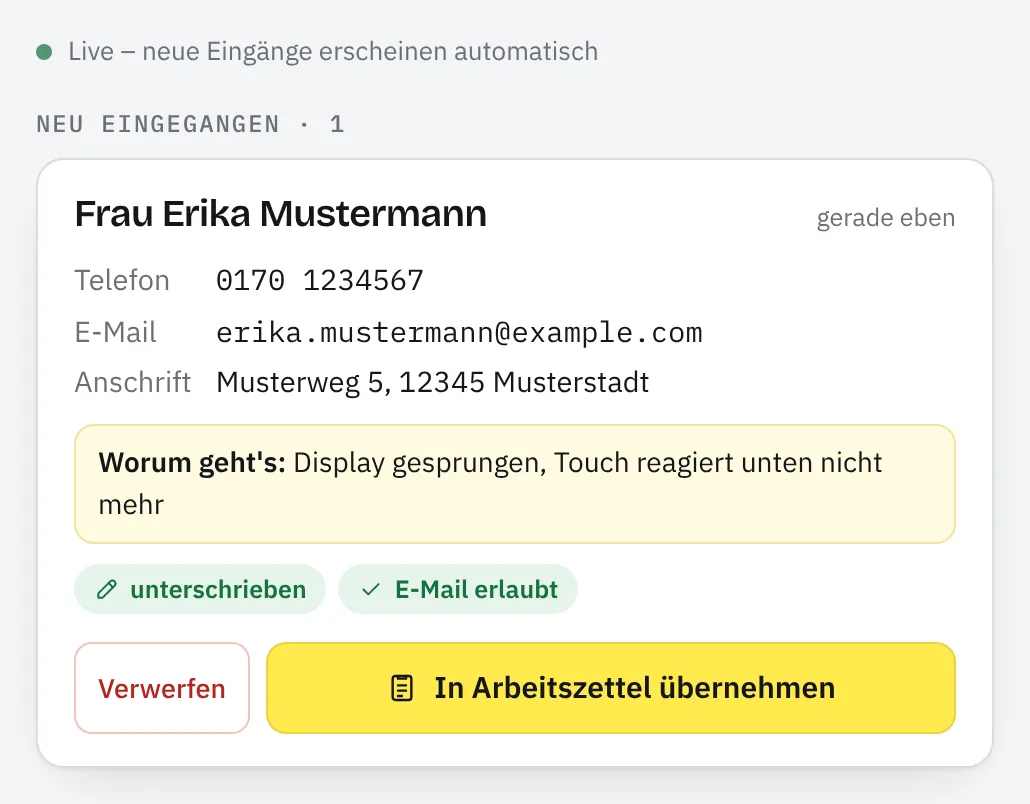
- The entry appears by itself. The new entry shows up in the “Check-ins” list within seconds, without reloading. If you're somewhere else in the app, Taskly announces it with a short notice and counts open check-ins on the menu item.
- Copy it over. “Copy into work order” creates the customer in your customer records or finds them there and opens a new work order with their details. You add the device, fault and price and save. You remove joke or duplicate entries with “Discard”.
Has someone photographed the code, or do you simply want a fresh one? “Generate new code” invalidates the old one immediately, even on displays already printed. Owners and office staff can do this.
Option 2: the one-time QR right in the form
For the customer standing in front of you while you're already taking in the job.
- Show the code. In the “New work order” form, tap “Customer fills in (QR)”. Taskly shows a QR code that's valid for 30 minutes and works only once.
- The customer scans. The display changes from “Waiting for the customer …” to “Customer is filling in …”. Meanwhile you enter the device, fault and price.
- The details arrive. When the customer submits, their name, contact details and address appear in the open form straight away: “Received – fields filled in”. Taskly fills in the customer fields; anything you've already written in other fields stays. If the customer signed right away, their signature is in the signature field.
- Save. Done. If you close the window before anything arrives, Taskly withdraws the code. If it has expired, get a fresh one with “New code”.
Counter QR or one-time QR?
| Item | Counter QR | One-time QR |
|---|---|---|
| Where | printed at the counter (A5 display) | in the “New work order” form |
| Valid | until you generate a new code | 30 minutes, single use |
| Details land | in the “Check-ins” list | in the open form |
| Good for | rush hours and waiting customers | the customer in front of you |
| Signature terms | from the default template or the type the customer chooses | from the template in the open form |
What the customer sees on their phone
| Section | Content |
|---|---|
| Header | your business name, address and phone number from your settings, with the language choice below |
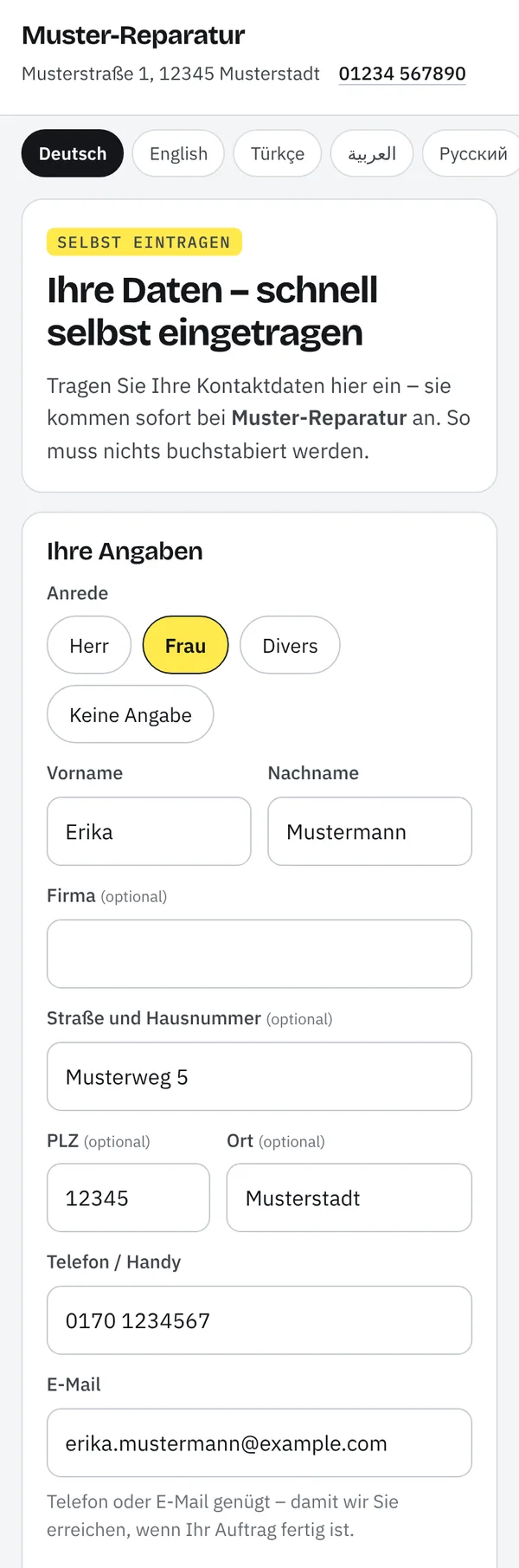
| Your details | Title (Mr, Ms, diverse, not specified), first name, last name*, company, street and house number, postcode, town, phone / mobile, email – phone or email is enough* |
| What's it about? | optional short description, for example “Screen cracked” |
| Messages about your job | optional ticks for messages by email and by SMS |
| Terms & signature | if switched on: your terms, the required tick “I have read the terms and agree.” and the field for signing with a finger |
| Privacy | who is responsible (your business), that Taskly acts as a processor, a link to your privacy policy (if provided) and to Taskly's |
* Only the last name and at least phone or email are required – plus, if switched on, the tick and the signature.
The page follows the phone's language setting and can be switched at the top: German, English, Turkish, Arabic (right to left), Russian, Ukrainian, French and Spanish. It shows your terms in the exact wording of your template, i.e. as they appear on the work order.
Signature right at check-in
With the setting “Customer signs at check-in” – on by default – the customer also reads your terms on their phone, for example on data loss or storage, confirms them with a tick and signs with a finger. When you copy the check-in over, the signature is in the work order's signature field. They then don't have to sign again in the shop.
Which terms they read depends on the route: with the one-time QR, those of the template currently open in the form; with the counter QR, those of your default template. If you have several work order types with different terms, e.g. for phones and cars, the customer first chooses “What's it about?” at the counter QR and signs exactly the right ones. As proof, Taskly stores the time and a hash of the terms, i.e. which version they read. If you change the text while their page is open, they have to reload it.
The signature only applies to the terms the customer read: if you open their check-in in a different template, they sign again there. You'll find the switch in the “Counter QR” window; owners and office staff can change it. If your template has no signature field, there's no signature at check-in.
Data protection: what is stored and for how long
| Who gets the data | Only your business. You're responsible; Taskly processes the data on your behalf (data processing agreement). The database and files are stored in the EU. |
|---|---|
| What is stored | the customer's details, their decision on email and SMS with time, language and text version, and where applicable the signature as an image with time and a hash of the terms |
| Consent | only applies to the email address or mobile number the customer entered themselves. If your team changes it later, nothing more goes out via that channel without new consent. |
| How long | A check-in stays in the list for 24 hours, copied over or not. After that Taskly no longer shows it and deletes it automatically. Details you copied over remain in the work order and in your customer records. |
| One-time code | stored only as a cryptographic hash, not as a link |
| Customer page | sets no cookies, is blocked for search engines and shows no data in messenger link previews |
| Spam protection | a field invisible to humans against spam bots, a minimum time for filling in, at most 60 open entries per business and a limit on requests |
Details are in the privacy policy, section “Entering your own details (check-in)”.
What self check-in is not
- No queue ticket system. Taskly doesn't hand out numbers or call anyone up. Check-in replaces dictating, not the queue.
- No identity check. Taskly checks the format of the phone number and email address, but not whether the name and address are correct. If you need certainty, e.g. for expensive devices, glance at their ID as before.
- No customer account. The customer doesn't create anything and doesn't see earlier jobs. The page only receives their details.
- Not without a phone and internet. If the customer has no smartphone or no signal, you enter the details yourself as usual – or photograph their business card and the AI helper reads the contact details (can be switched off per business). You check them before saving.
And Taskly as a whole is not a till system, not stock management and not a car dealer management system, but the digital work order with everything that goes with it.
Which businesses is it for?
For everyone whose customers drop something off for repair or work: in a phone shop, at a car garage, in a bike shop, for PC repair, at a tailor's or a shoe repair and key cutting service. The contact fields are the same everywhere; what you enter in the work order afterwards depends on your template. All industries and templates at a glance. If it has to be paper after all, there's the repair order as a printable template. How the customer then signs on the tablet or on their own phone is explained under digital signature; you'll find returning customers in your customer records.
What self check-in costs
It's part of the Taskly subscription for €19 a month incl. VAT – try it free for 30 days, no credit card; the trial ends automatically and nothing is charged. SMS is available on request for enabled businesses. Pricing and limits in detail
Self check-in FAQ
Does the customer need an app or an account?
No. They open their phone camera, scan the code and the page opens in the browser. They don't need an account or a password.
What if someone photographs the counter QR and enters nonsense?
You remove such an entry with “Discard”. Against spam bots, the page has an invisible field and a minimum time for filling in; Taskly accepts no more than 60 open entries per business. If it gets too much, generate a new counter code – the old one stops working immediately. The one-time QR from the form is only valid for 30 minutes and only once anyway.
Will I get duplicate customers in my records?
When copying over, Taskly looks for the customer by their phone number. It only merges by email address if the name matches too, because a family or company address is often shared by several people. Taskly doesn't overwrite existing details in your records; it only fills in empty fields.
Does the app have to be open all the time?
No. Entries wait in the “Check-ins” list until you copy them over. When the app is open, it announces new entries and shows their number on the menu item. Important: after 24 hours a check-in is gone – so copy it over within that time.
Does my whole team see the check-ins?
Yes. Everyone in the team sees the list and can copy over or discard entries. Only owners and office staff can generate a new counter code and switch the check-in signature on or off.
Which languages is the check-in page available in?
Eight: German, English, Turkish, Arabic (right to left), Russian, Ukrainian, French and Spanish. The page follows the phone's language setting, and the customer can switch at the top. It shows your terms in the exact wording of your template.
Does the customer get messages after checking in?
Only via the channels they ticked themselves. The ticks for email and SMS are optional; they can submit without them. The check-in itself sends nothing; messages only go out with the work order, for example when you mark it “Ready”. By email this works for all businesses, by SMS only for enabled businesses (on request).
Is a signature at check-in as good as one at the counter?
Technically it's the same finger signature as on the tablet: it goes into the work order's signature field, and Taskly also stores the time and the version of the terms. It's a simple electronic signature – proof, but not a qualified electronic signature and no substitute for a legally required written form. This information is not legal advice.
Last updated: 16/10/2026 · Taskly, E-Studio, Iserlohn